Using a draft
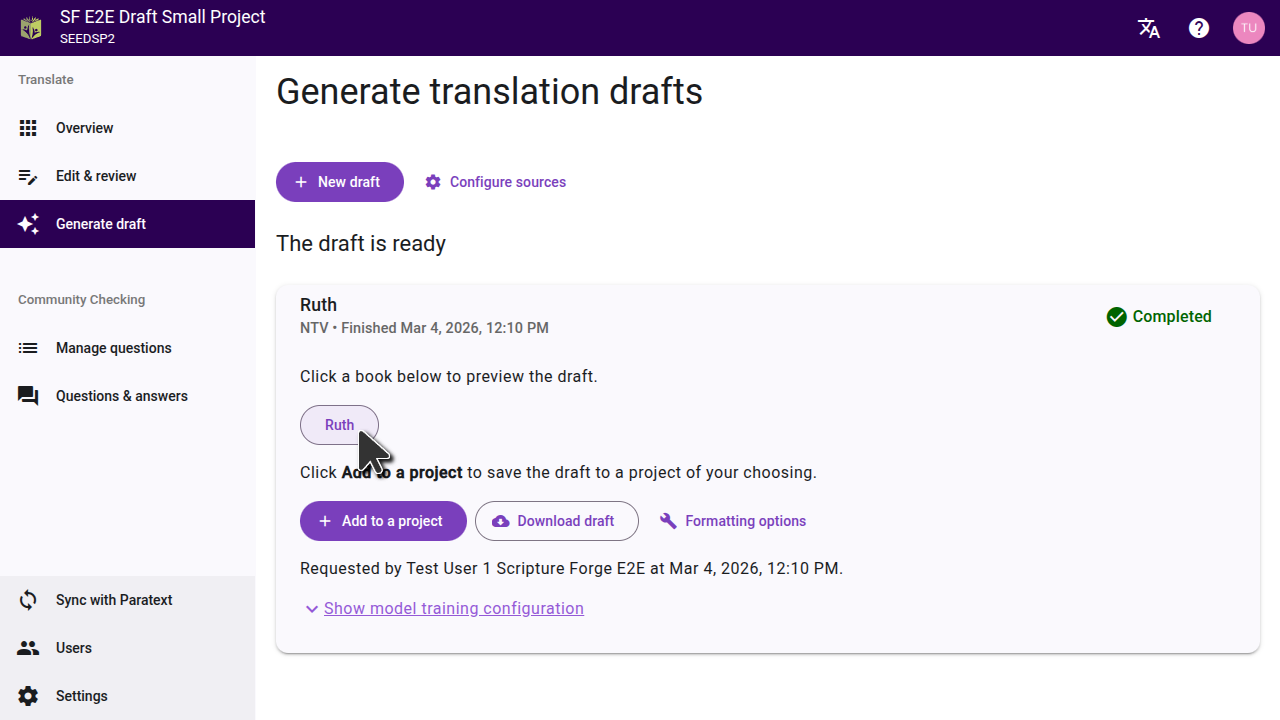
Scripture Forge will show when your draft is ready and list the books that were drafted. Generated drafts are not automatically imported to your project. You can preview or import drafts from the Generate draft page.
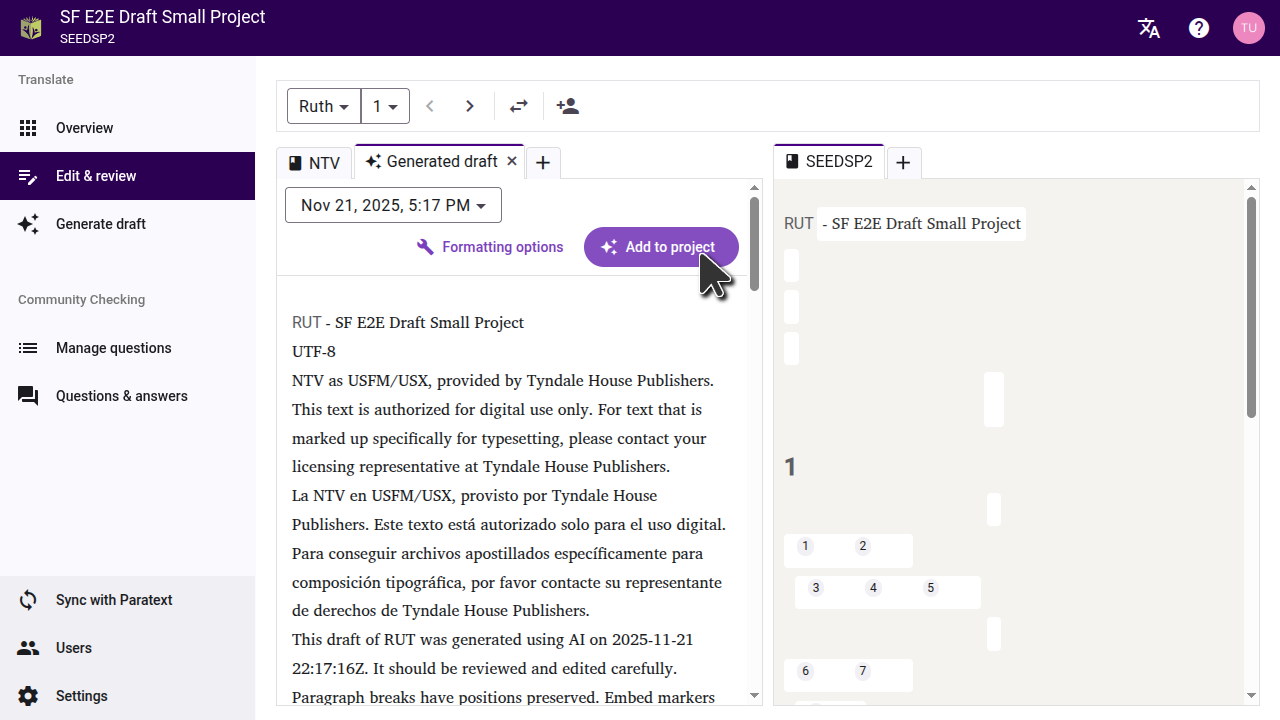
- To import individual chapters, click on a book, then above the chapter that opens, click "Add to project." Individual chapters can only be added to the current project.
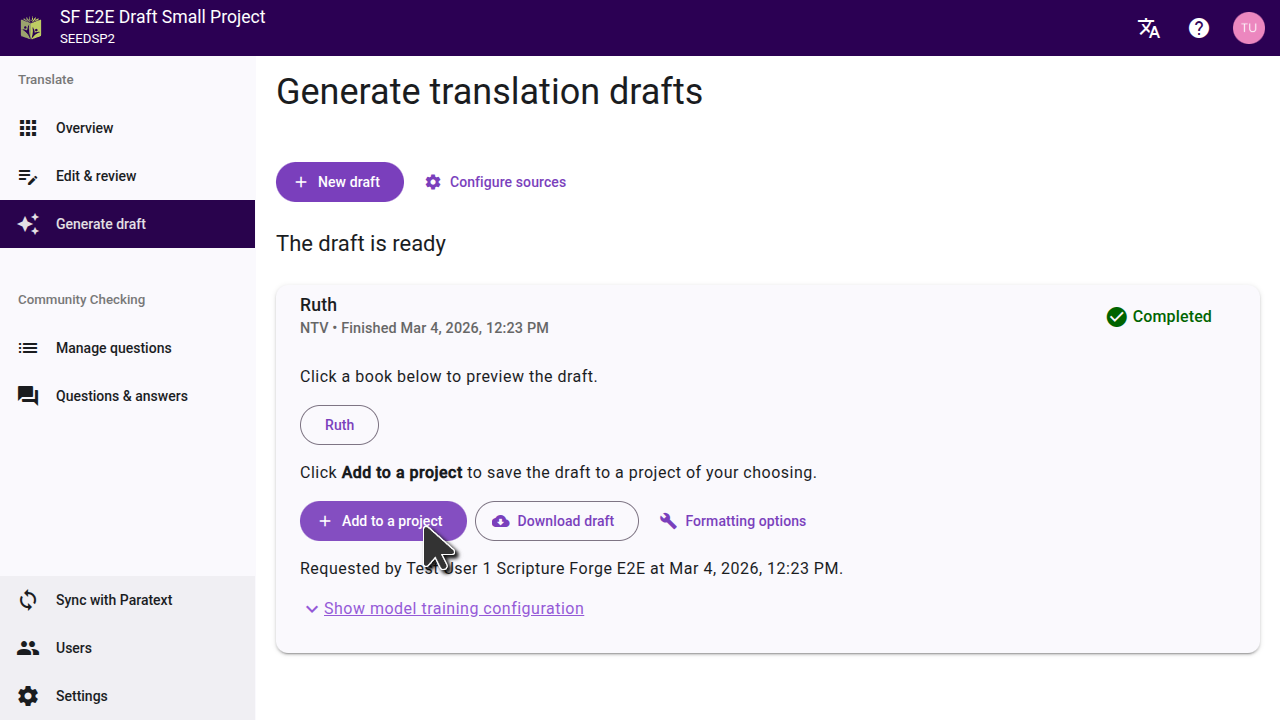
- To import a full book, click on "Add to a project". You can choose to import the book into your main project, or to a different project.
Previewing a draft
Click on a book title to view the draft. The draft will open in a new tab on the editor page.
To compare the draft to the text it was translated from, set a source on the settings page. This will allow you to see a source and the resulting draft side-by-side.
If you drafted a book the team has already finished translating, you can move the draft tab to the other side of the page, and compare it with the team's translation.
Importing a single chapter
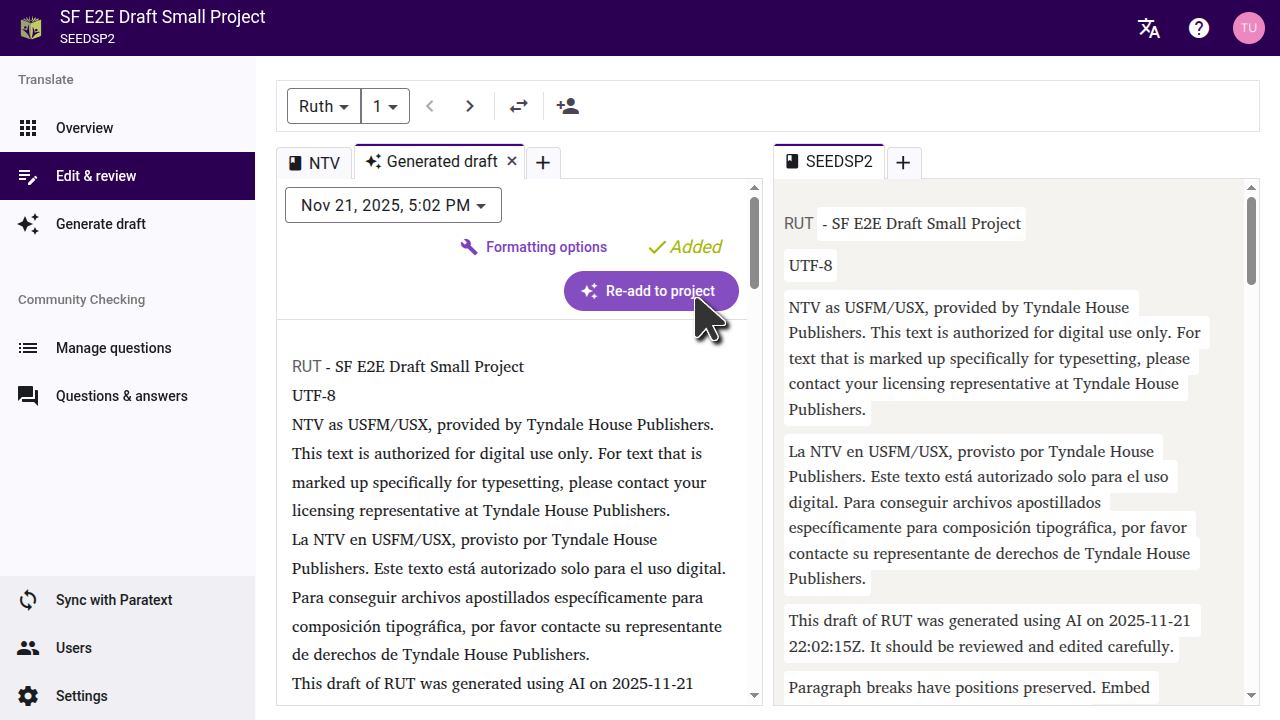
When previewing the draft, you can import the draft of the current chapter into the project by clicking "Add to project". You can go to each chapter in the book and preview and import each chapter one at a time. This will add the chapter to the current project, not to a different project.
Importing an entire book
If you want to import an entire book, or multiple books, you can do this from the "Generate draft" page. Click "Add to a project" and then select the project you want to import to.
In the dialog that opens, select the project you want the draft to be imported to. Important: Importing the draft will replace any existing content in the project for that book.
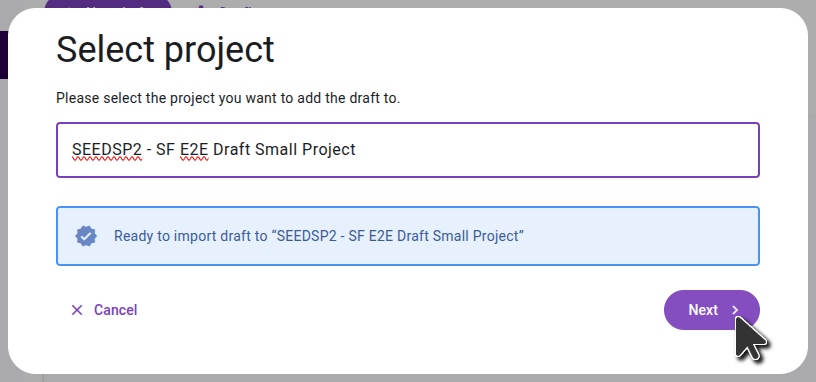
Once you've imported the draft to a project, sync the project in Scripture Forge and then do a send/receive in Paratext to see the changes.
Exporting USFM files
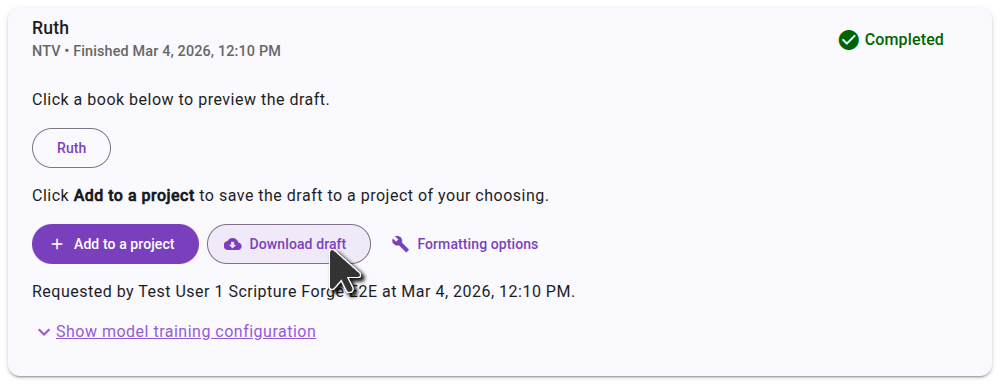
If you prefer not to import the draft directly to your project, you can also download the draft as USFM files. On the "Generate draft" page, click "Download draft", and extract the files on your computer. You can then import these files into a project in Paratext.
Viewing drafts in Paratext 10 Studio
Paratext 10 Studio includes a Scripture Forge extension. You can view drafts without importing them:
- Open the Scripture Forge extension.
- Log in to Scripture Forge.
- Select your project to view the draft.